
If you have a sun+ chipset-based set-top box and you want to connect this box to the Internet by using a mobile USB cable then here is the complete procedure, which you can follow and do it easily.

Step:1
First of all, from your remote press the “Menu” button then go to “Installation” and it will ask for a password then enter “0000”.

Step:2
Now you will see a new window and you will find lots of options. Click on “Network Setup”

Step:3
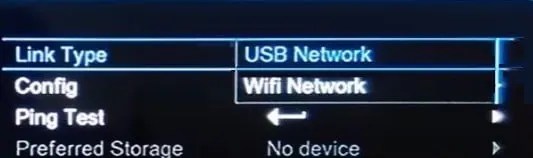
Now you will see another window, select “USB Network” and save settings by pressing the “OK” or “Exit” button from your remote.
Step:4
Now use given below smartphone data cable below to connect with your Sun Plus-based free-to-air set-top box.
Here are the connectivity options:
USB Male Pin>> Plug in your Set-Top Box.
USB Micro or C-Type USB Male Pin>> Plug in this port to your Smartphone.
USB tethering – Now you can “ON” USB tethering in your smartphone to pass the internet to the set-top box using the USB cable. (Follow given below instructions)

Step:5
Now go to your smartphone (Android) settings. Click “more” below “Data uses”.

Step:6
Here you will see in second option “Tethering & mobile hotspot” Click on that.

Step:7
Here, you will see the “USB tethering” option and press the right-hand side button to activate “USB tethering”.

Now you will see that your set-top box is connected to a USB network by mobile. Now you can watch YouTube and other applications in Sun+ Set-Top boxes.
If you like this post then follow us.


